These instructions are written based on these pages:
- https://github.com/microsoft/vscode-cmake-tools/blob/main/docs/how-to.md#build-a-project
- https://code.visualstudio.com/docs/cpp/config-mingw
C++ Compiler on Windows
Install C++ compiler
- Download the MSYS2 installer MSYS2 installer
- Run the installer and follow the steps. You can refer to this tutorial
- In the wizard, choose your desired Installation Folder. Record this directory for later. In most cases, the recommended directory is acceptable. The same applies when you get to setting the start menu shortcuts step. When complete, ensure the Run MSYS2 now box is checked and select Finish. This will open a MSYS2 terminal window for you.
- In this terminal, install the MinGW-w64 toolchain by running the following command:
pacman -S --needed base-devel mingw-w64-ucrt-x86_64-toolchain - Accept the default number of packages by pressing Enter.
- Enter Y when prompted to proceed with the installation
Add the compiler to Windows environment
Add the path of your ucrt64 bin folder to the Windows PATH environment variable by using the following steps:
- In the Windows search bar, type Settings to open your Windows Settings.
- Search for Edit environment variables for your account.
- In your User variables, select the Path variable and then select Edit.
- Select New and add the MinGW-w64 destination folder you recorded during the installation process to the list. If you used the default settings above, then this will be the path: C:\msys64\ucrt64\bin.
- Select OK, and then select OK again in the Environment Variables window to update the PATH environment variable. You have to reopen any console windows for the updated PATH environment variable to be available
Use VSCode
On Windows, you might need to create a CMake presets file. You have the instructions here: https://github.com/microsoft/vscode-cmake-tools/blob/main/docs/cmake-presets.md#configure-and-build-with-cmake-presets
First, open the folder containing your code, which has CMakeLists.txt at the root. You will need to access the command palette of VS Code. To access it, use the shortcut Ctrl+Shift+P; then a drop-down menu will appear with a space to type a command.
Add or Select a preset (Optional)
To add or select a preset, you can type in the command palette: CMake: Preset.
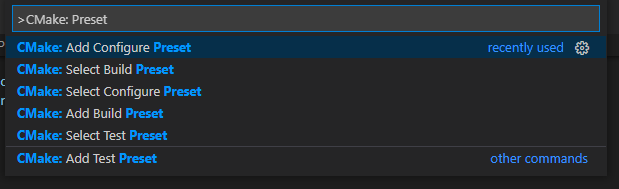
Configure the project
To configure a project, type in the command palette: CMake: Configure.
You should see a bunch of text running on the bottom part of the screen. If no errors is thrown, the project can be built.
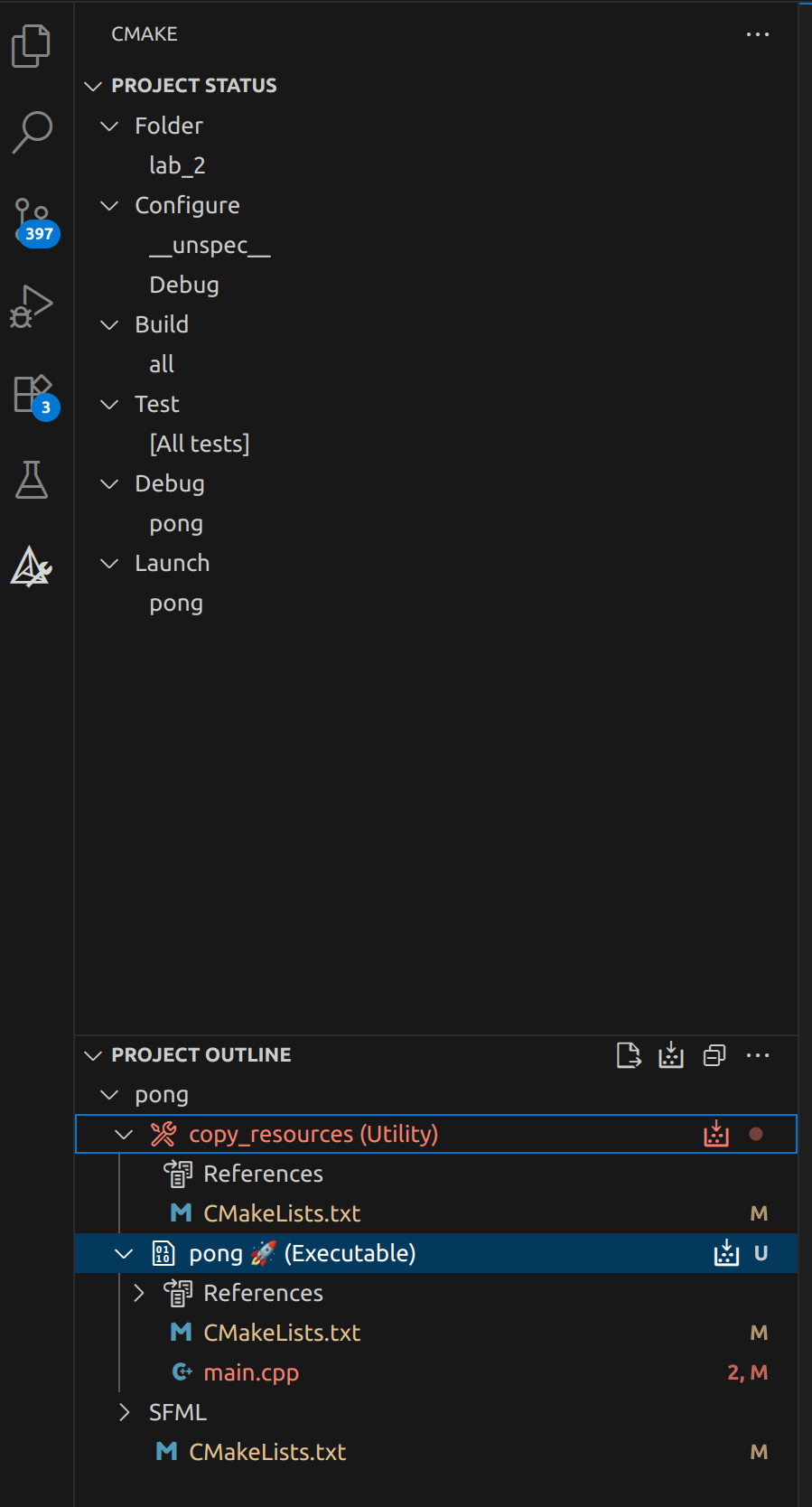
Additionally, once your project is configure, you should have an additional section on the left bar of VS Code. This will give you a view of your project through the CMake “lens”.
Build the project
To build the project, type in the command palette: CMake: Build
Like for the configuration, you will have a terminal on the bottom part of the screen with the build info.
Run the project
You can run your project either with or without debug:
- With Debug:
CMake: Debug - Without Debug:
CMake: Run Without Debugging